User guide
Editing your card
Use the profile editor to set your identity, contacts, address, logo and accent colour.
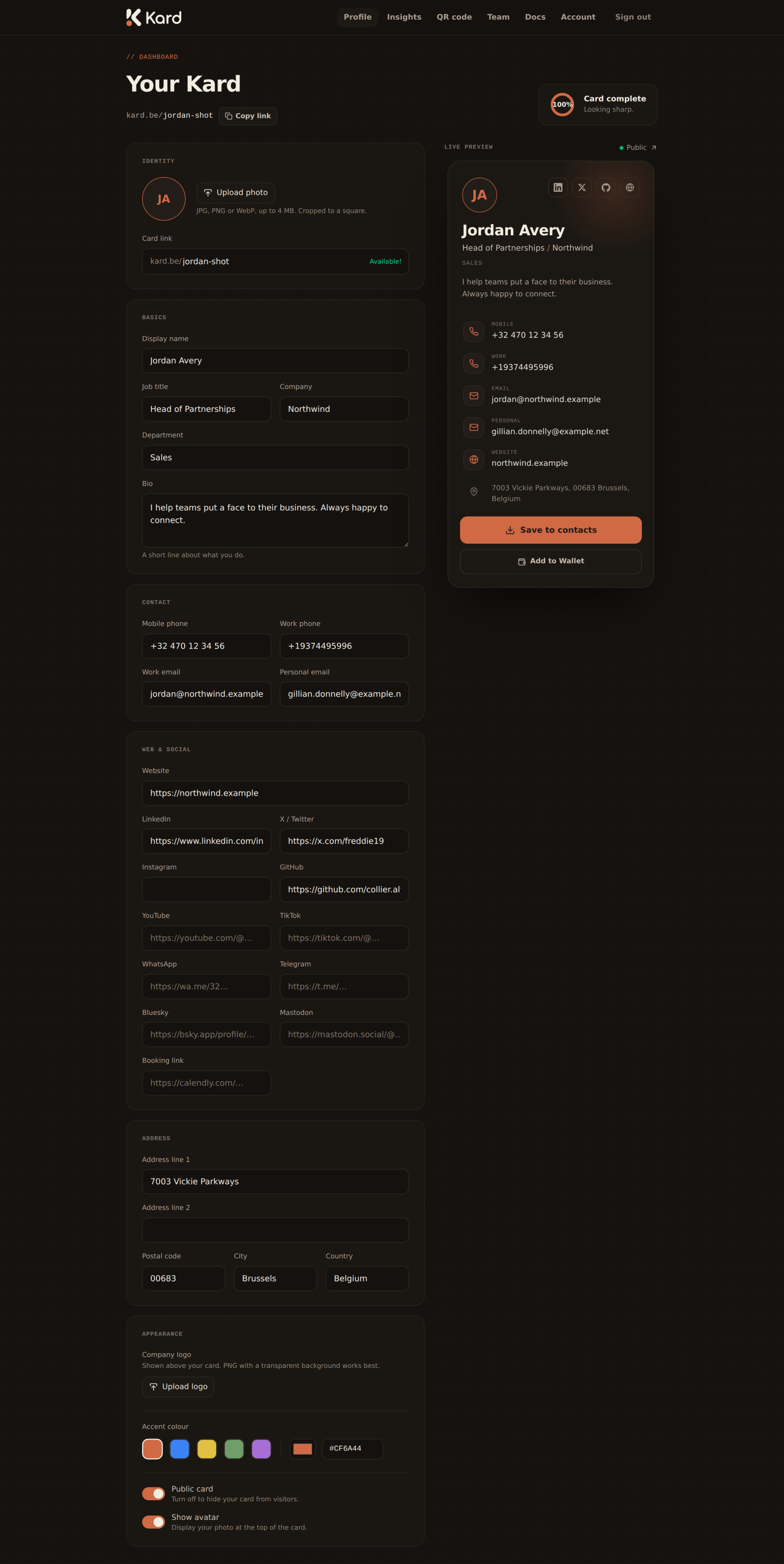
The profile editor at /profile is where you build your card. It is split into clear
sections, with a live preview beside the form that updates as you type — so you always
see exactly what a visitor will see.
Identity & basics
Start with who you are:
- Display name — the name shown large at the top of your card.
- Job title and company — your role and where you work.
- Bio — a short line or two about what you do.
- Avatar — upload a photo; Kard resizes it for you. A clear, square headshot works best.
Contact details
Add the ways people can reach you. Each field you fill in becomes a tappable action on your
public card and is written into your vCard and wallet passes:
- Phone, email and website
- Address — appears with a map link
Leave anything blank and it simply won't be shown — your card only ever displays what you
fill in.
Social links
Add your social profiles (LinkedIn, X/Twitter, Instagram, GitHub, and more). Each one
renders as a recognisable icon in the contact row of your card.
Appearance
- Accent colour — pick the colour used for buttons and highlights. Choose a swatch or
set your own to match your brand. - Company logo — upload a logo to display on your card.
If you belong to a team that has locked its brand, the team's accent colour and logo
override your personal choices everywhere your card appears. You'll see a note in the
editor when this is the case — see the Team admin guide.
Saving
The editor keeps a sticky save bar out of the way until you actually change something.
As soon as there are unsaved changes it appears with a Save changes button. Your edits
are published immediately — there is no separate "publish" step.
Card completeness
A small Card complete indicator nudges you to fill in the details that make a card feel
finished. It's a guide, not a requirement — share whenever you're ready.
Trial status
While you're on a trial, the editor shows a banner with the days remaining, and warns
you once the trial has ended (your card stays editable but goes offline to visitors until
your subscription is activated). It's the one place to keep an eye on where your trial
stands.